File Manager for macOS
made for creators, photographers and videographers

Every frame you've shot, finally in order.

Frames Archive is a smart file manager for video and photo libraries. Let AI help tag and organize your videos and pictures, and import whole cards into a clean, date-based library in a few clicks.

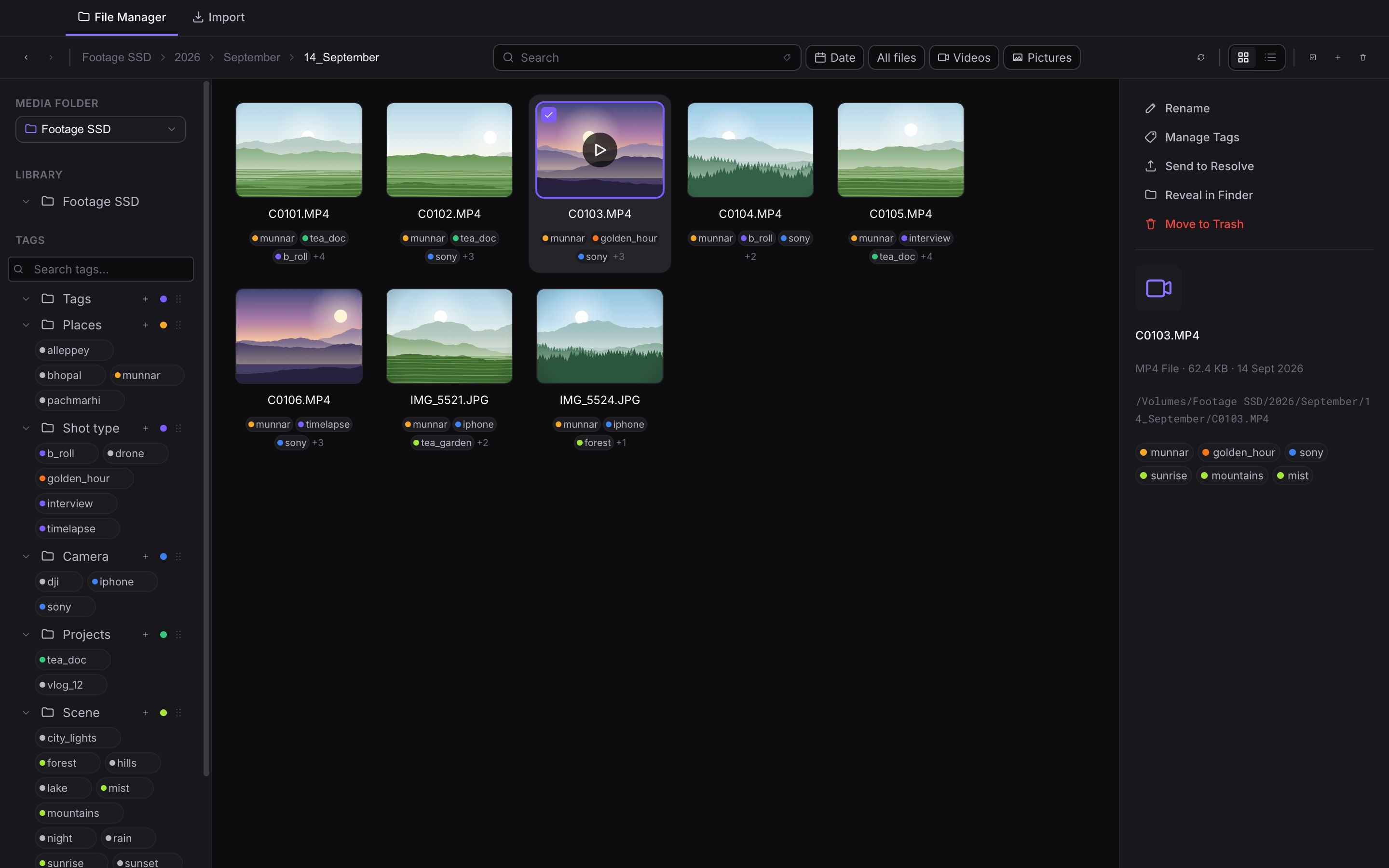
The Frames Archive library view

Frames Archive showing a day of footage from 14 September as thumbnails, each clip labelled with tags such as munnar, tea_doc and sony, with the selected clip's details and tags in the side panel.

A day of shooting, laid out as thumbnails with tags you can read at a glance.

Core features

Built for people who shoot a lot.

A generic file manager sees files. Frames Archive sees footage: clips, days, places and projects. Here's what it does from the first launch.

  • 01

    Let AI tag your footage

    Connect Claude or another AI agent over MCP. It looks at frames from each clip and tags it by place, subject and mood.

  • 02

    Tags that live with your files

    Label clips by place, project or camera, group tags, and color them. Tags are real Finder tags, and you can load the ones you already use in Finder.

  • 03

    Import cards into a clean library

    Point Frames Archive at an SD card or drive and it files every clip into Year / Month / Day folders, keeping each file’s original dates. Presets remember your setup, and nothing is ever overwritten.

  • 04

    Find any day in seconds

    Filter by date range across a whole folder and search by tag.

  • 05

    Everything a file manager should do

    Rename, move, copy, create folders and send to Trash, with multi-select, Shift-click ranges and box selection for working through hundreds of files at once.

  • 06

    Send straight to Resolve

    Integrated with your favourite editor

    Pick your selects and send them into the current DaVinci Resolve project in one step, ready to cut.

AI agents · MCP

Let an AI agent tag your footage.

Frames Archive includes an MCP server, so Claude and other AI agents can browse your media folders, look at frames from each video, and tag it by what's actually in the shot. Ask for “tag every untagged video from May” and watch the tags appear in the app as they're written.

YouTag every untagged video from 14 September.

  1. list_tags 25 tags in 6 groups
  2. list_files 6 untagged videos in 2026/September/14_September
  3. get_video_frames C0101.MP4 · 5 frames
  4. tag_files C0101, C0102, C0105 → tea_garden, mountains, mist
  5. tag_files C0103, C0106 → sunrise, mountains, mist
  6. tag_files C0104 → forest, mountains

AgentTagged 6 videos. I reused your existing scene tags and didn't need any new ones.

An example of an AI agent tagging six videos with the Frames Archive MCP tools.
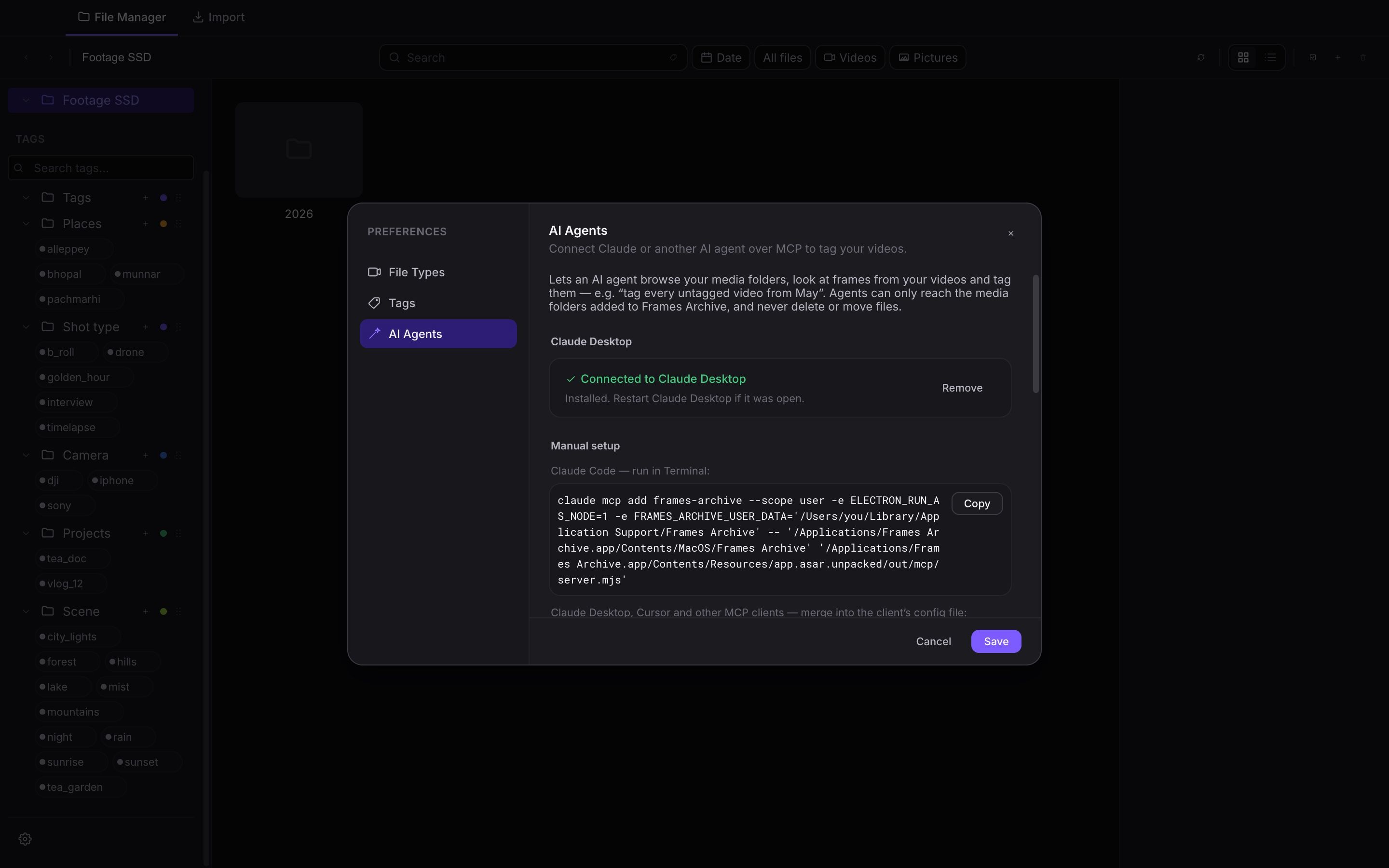
  • One click adds Frames Archive to Claude Desktop
  • Copy-ready setup for Claude Code, Cursor and other MCP clients
  • Reuses your tag vocabulary, and can organize tag groups when you ask
  • Reaches only the media folders you've added, and never deletes or moves files
Preferences, AI Agents section: Frames Archive connected to Claude Desktop, with a copyable Claude Code command for manual setup.
Connect Claude Desktop in one click, or copy the setup
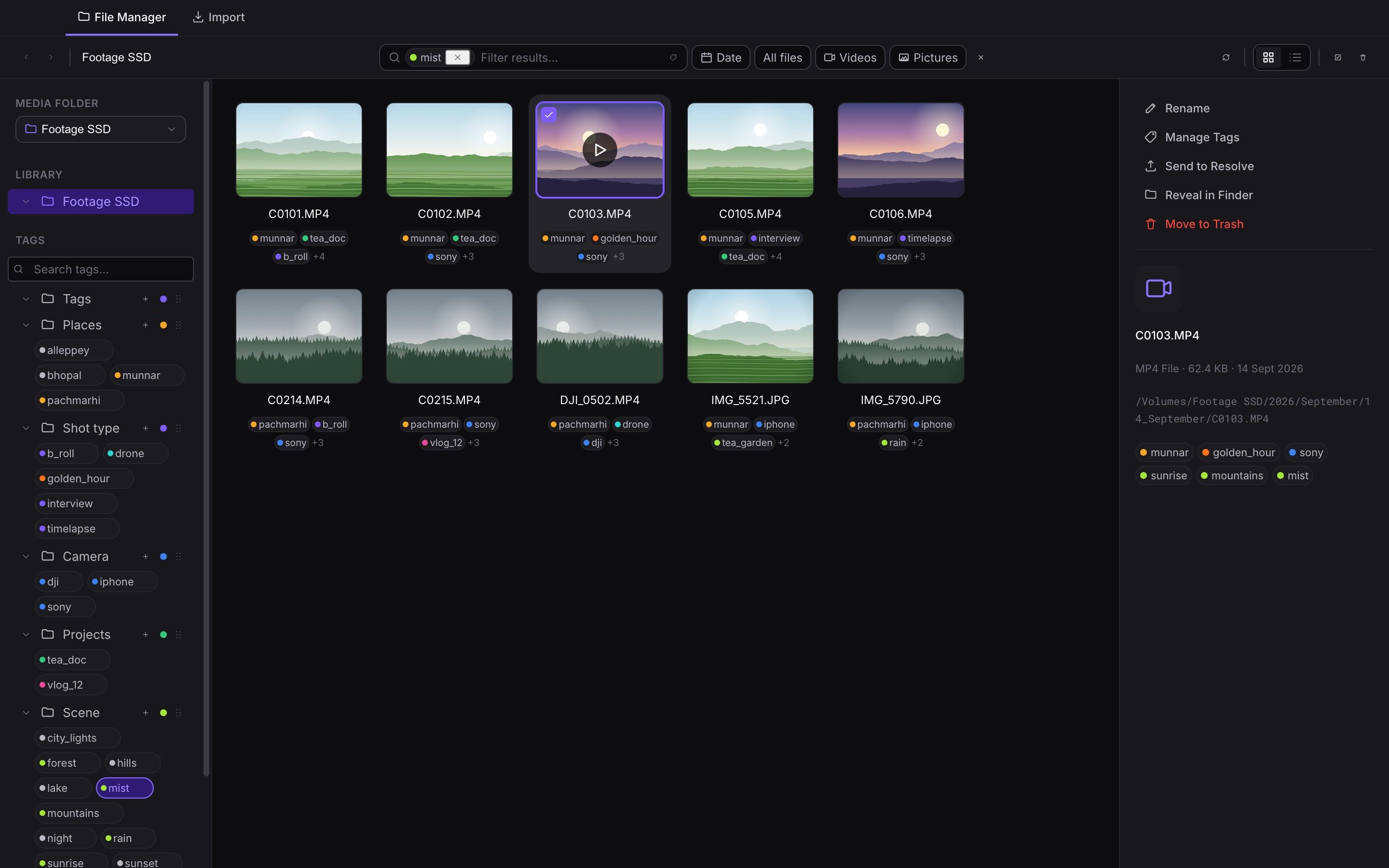
The library filtered by the scene tag mist, showing ten misty clips and photos; the selected clip has scene tags sunrise, mountains and mist alongside its place and camera tags.
Scene tags like mist, sunset and city_lights make footage searchable

A closer look

See it in action.

01 Import

Empty a card straight into a clean library

Point Frames Archive at an SD card and it previews exactly where every clip will land, sorted into Year / Month / Day folders before a single file is copied.

  • Clips already in your library are flagged and skipped
  • Select or skip a whole day with one click, or pick single files
  • Import videos, pictures or both, and keep every file’s original dates
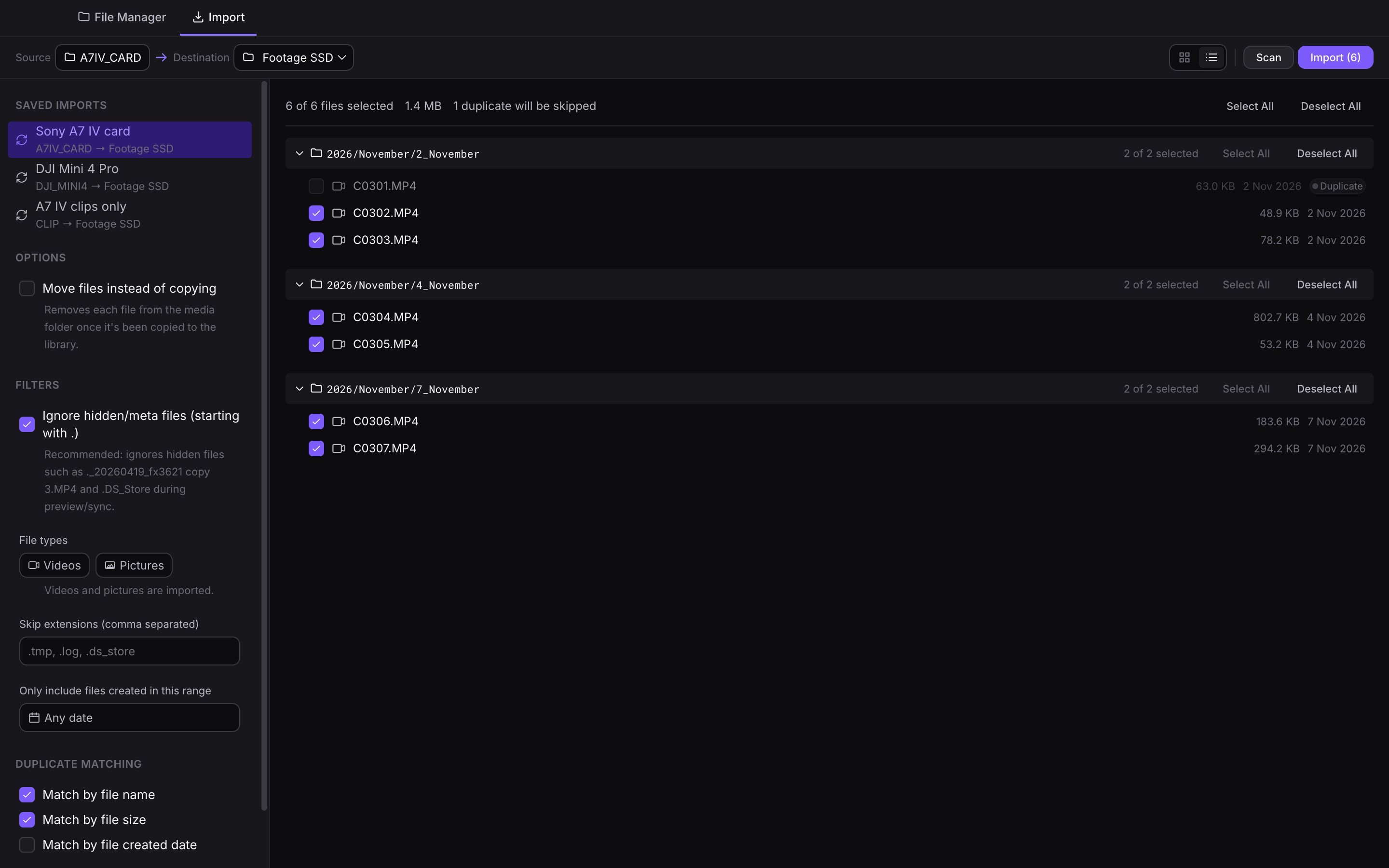
The Import screen with a Sony A7 IV card scanned: six clips grouped into November date folders, and one clip marked as a duplicate that will be skipped.
A scanned card, grouped by the day each clip was shot
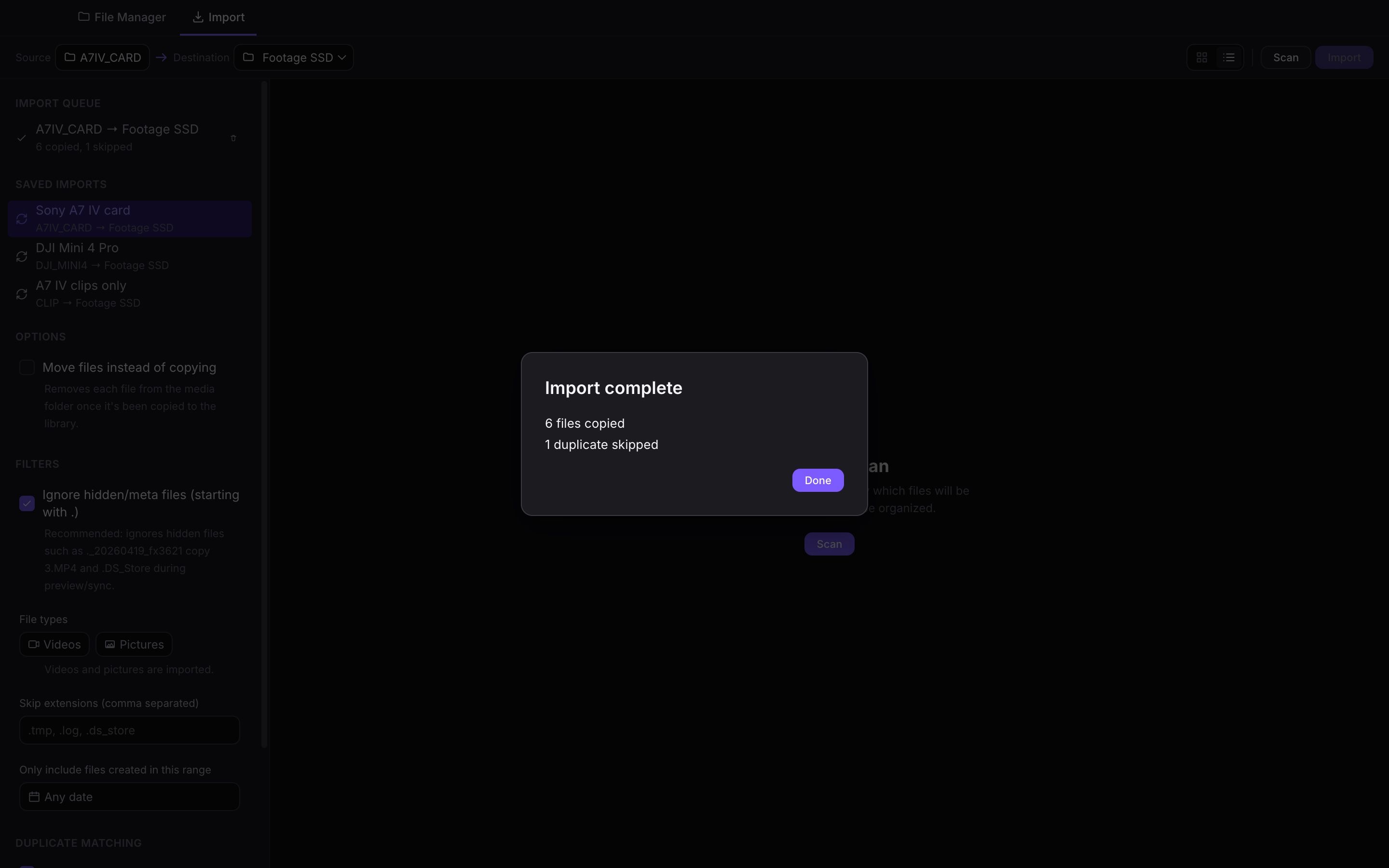
The Import complete dialog reporting 6 files copied and 1 duplicate skipped.
Six clips copied, one duplicate skipped

02 Saved imports

One click for every camera you own

Save each card and destination pair as a preset. Next time, pick the camera, hit Scan, and Frames Archive remembers the rest.

  • A preset per camera, drone or phone
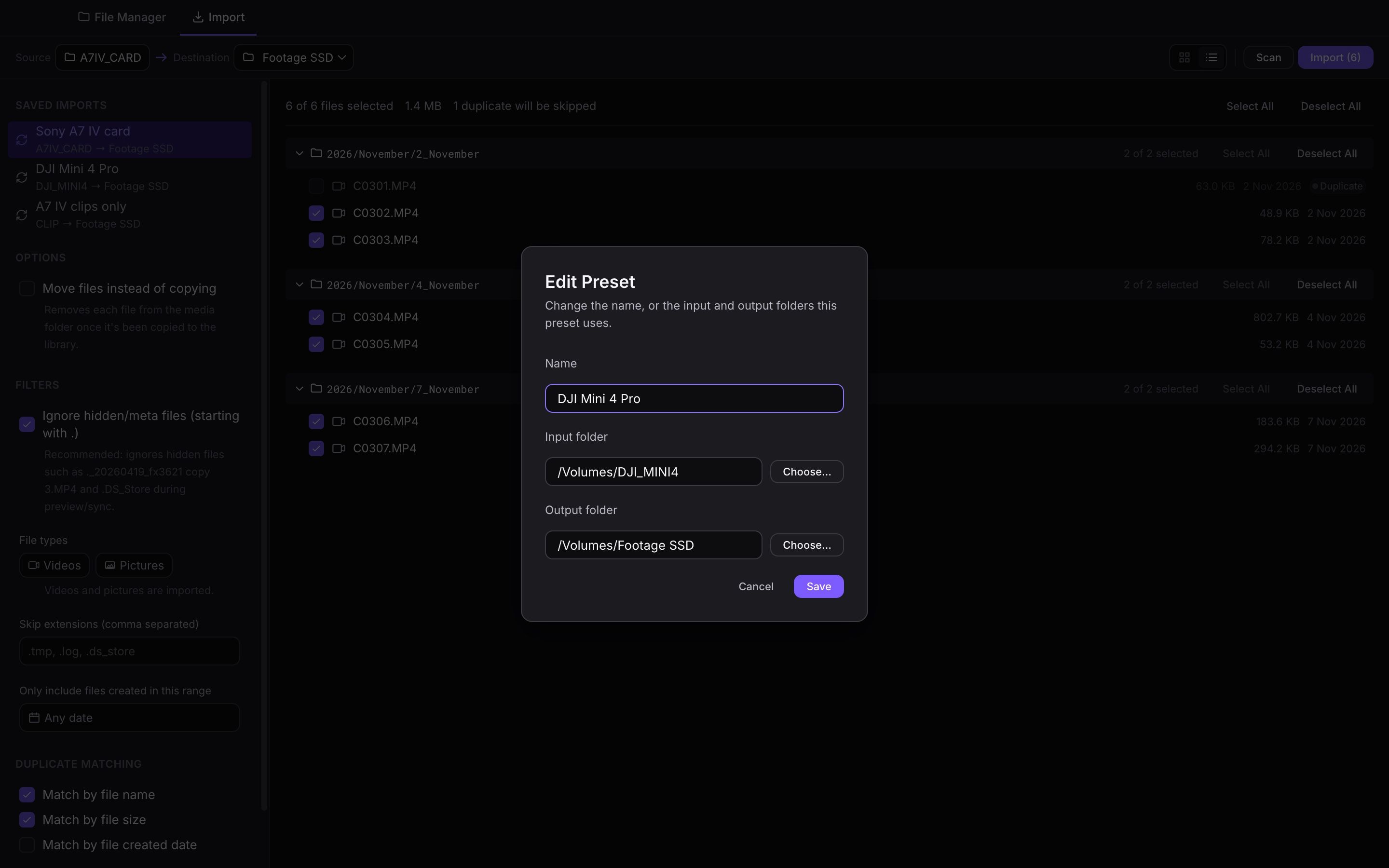
  • Edit the name, input and output folders at any time
  • Recent imports stay listed in the import queue
The Edit Preset dialog for a preset named DJI Mini 4 Pro, importing from the DJI_MINI4 card into the Footage SSD library.
Each preset remembers its card and its library
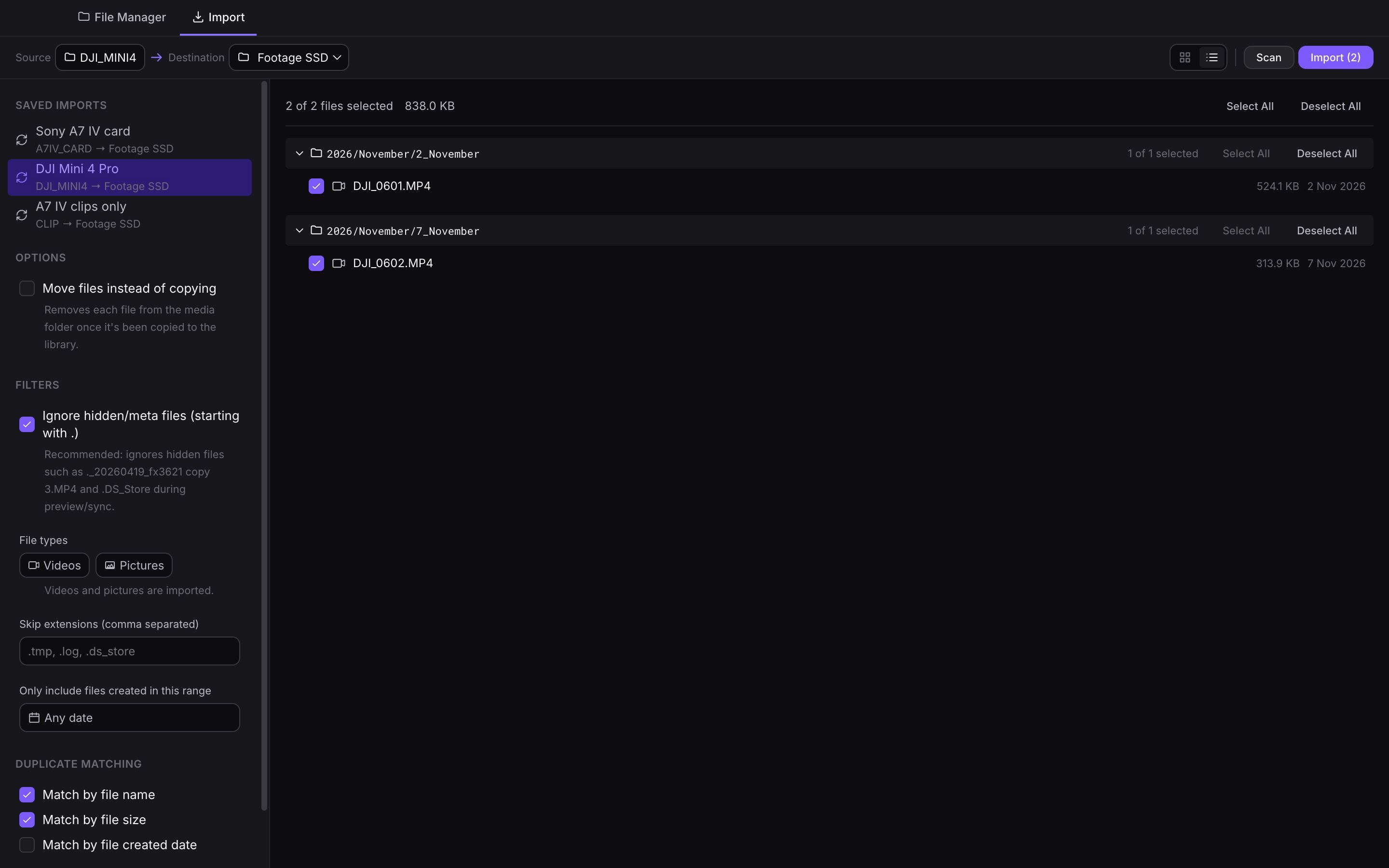
The DJI Mini 4 Pro preset selected in the Saved Imports list, with its two drone clips scanned and ready to import.
Switch to the drone card and scan it in one click

03 Date filters

Jump to the week you shot it

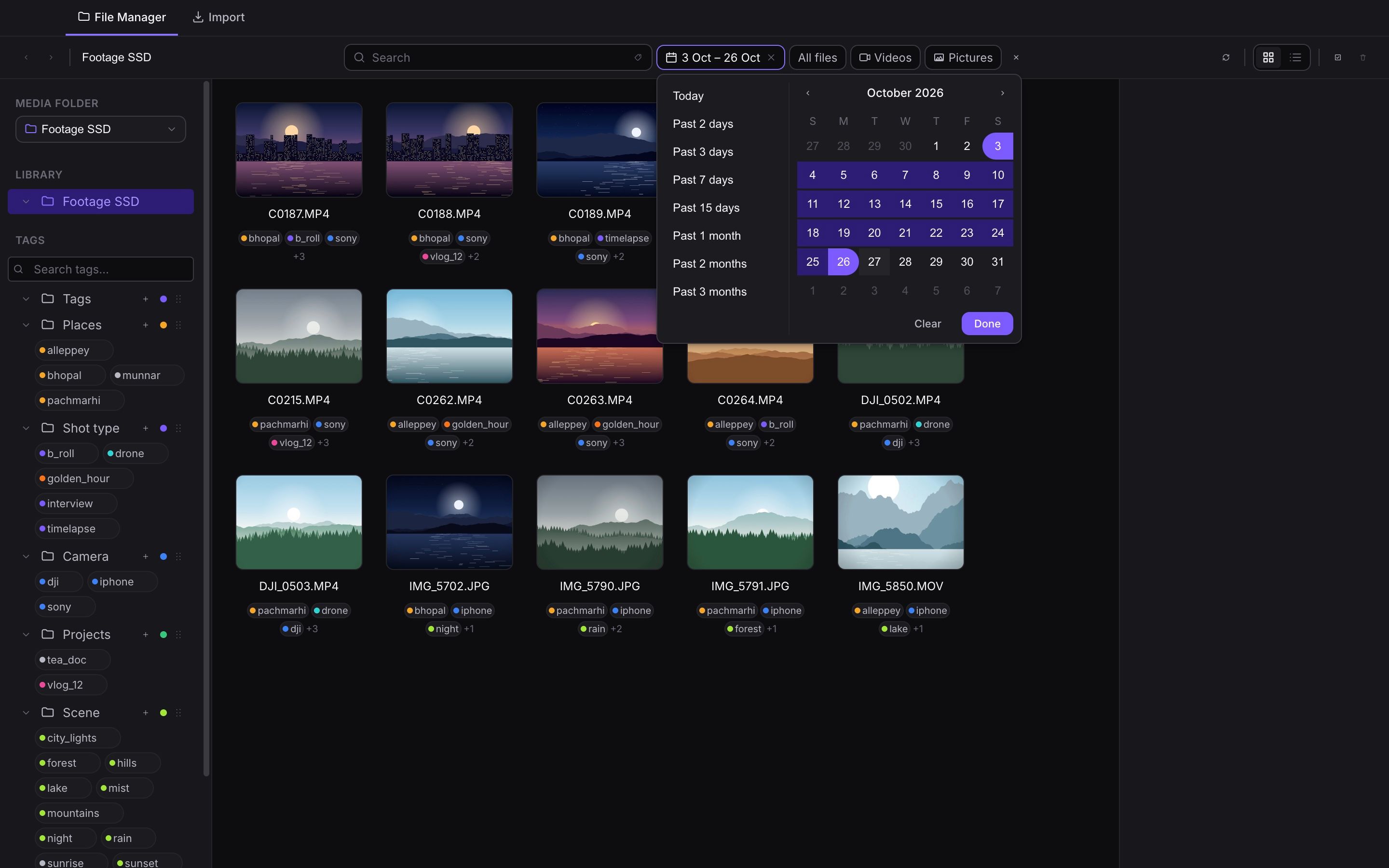
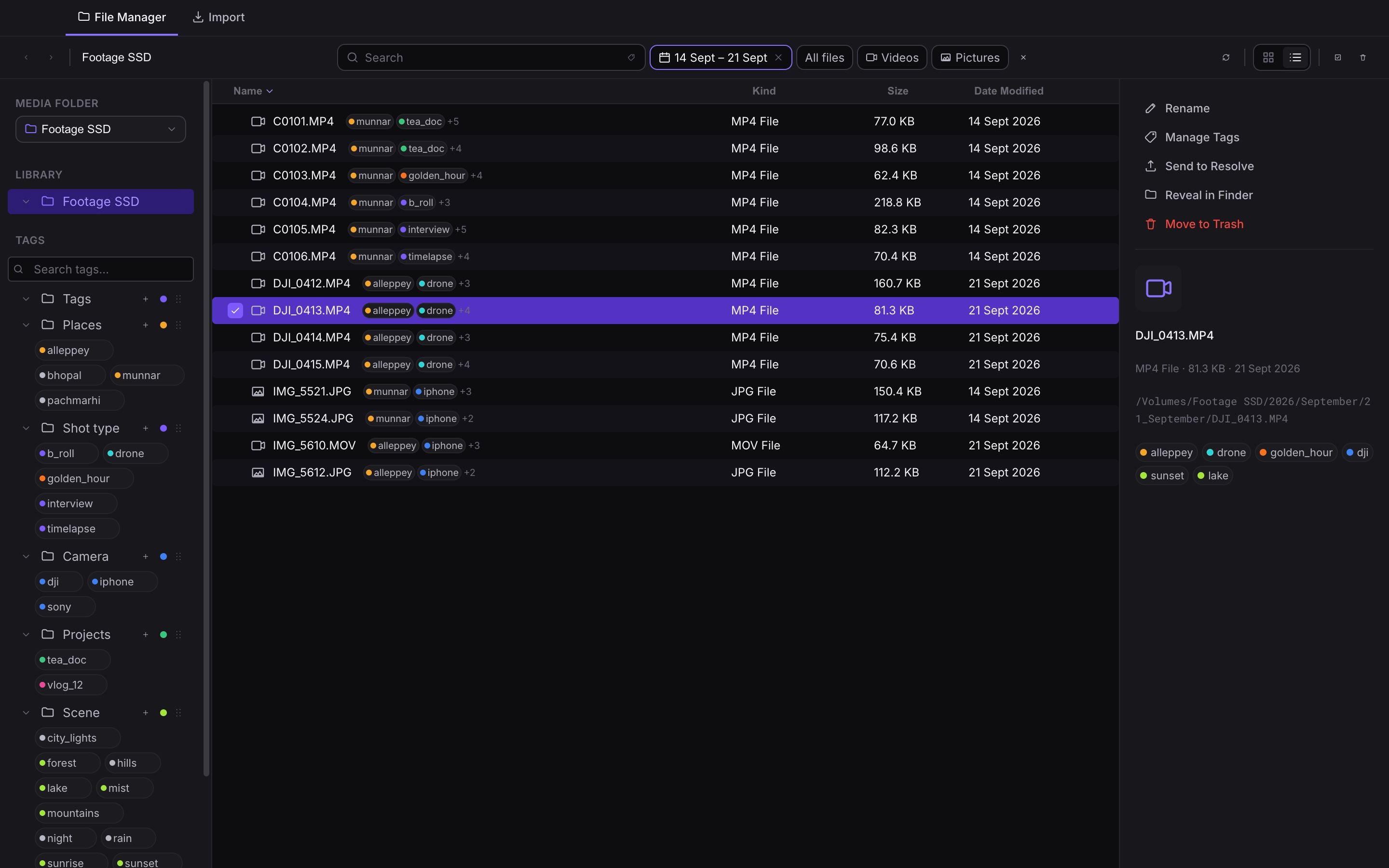
Filter the library by any date range, from quick presets like the past 7 days to a range picked on the calendar. Results come from every folder underneath, so you see the whole trip at once.

  • Quick ranges from today up to the past 3 months
  • Combine a date range with tags and search
The date filter calendar open with 3 to 26 October selected, and the matching clips from several October folders shown in the grid.
Three weeks of October, across every folder
List view filtered to 14 to 21 September, showing clip names, tags, kinds, sizes and dates.
The same filter in list view, with sizes and dates

04 File tagging

Tag clips the way you think about them

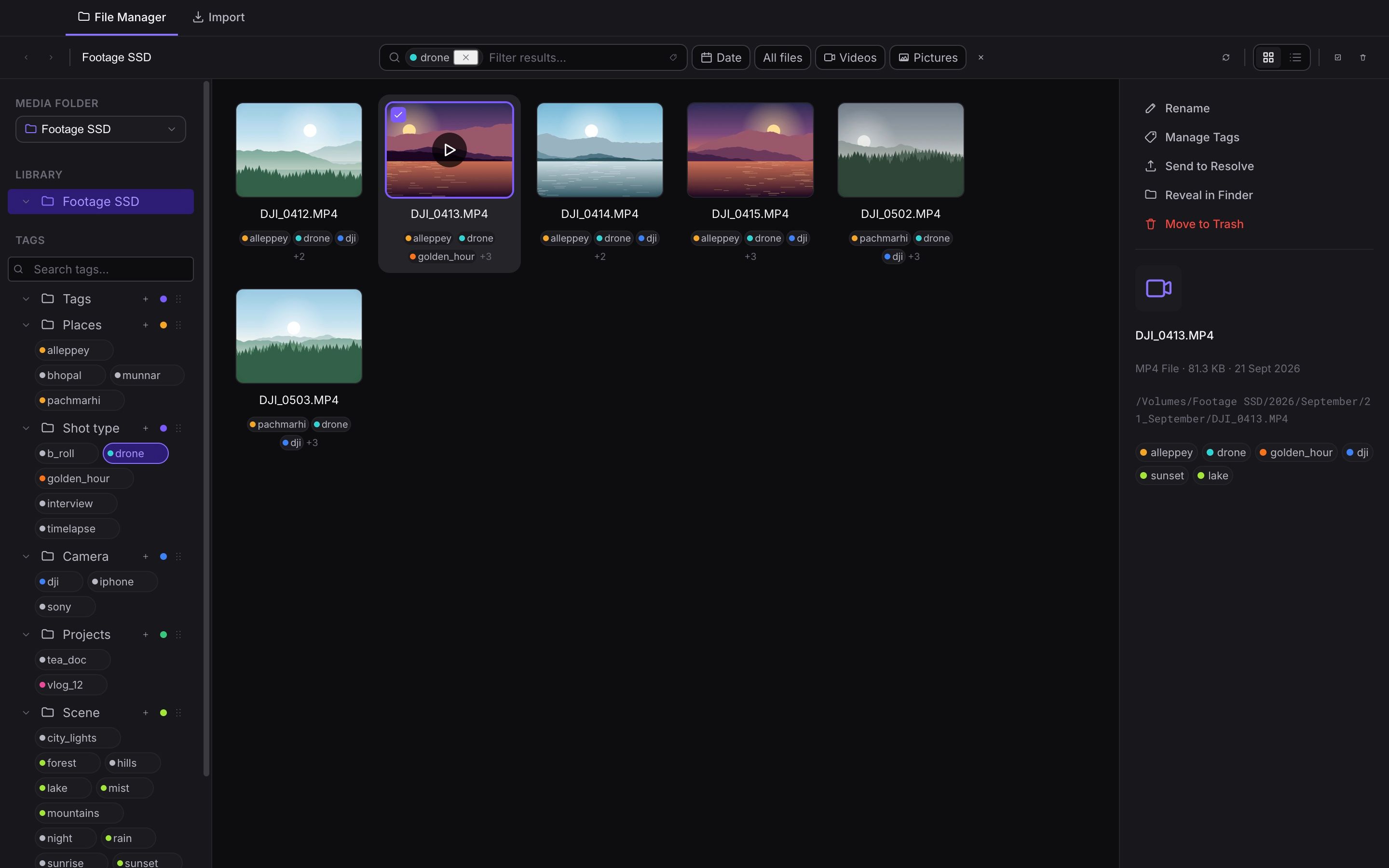
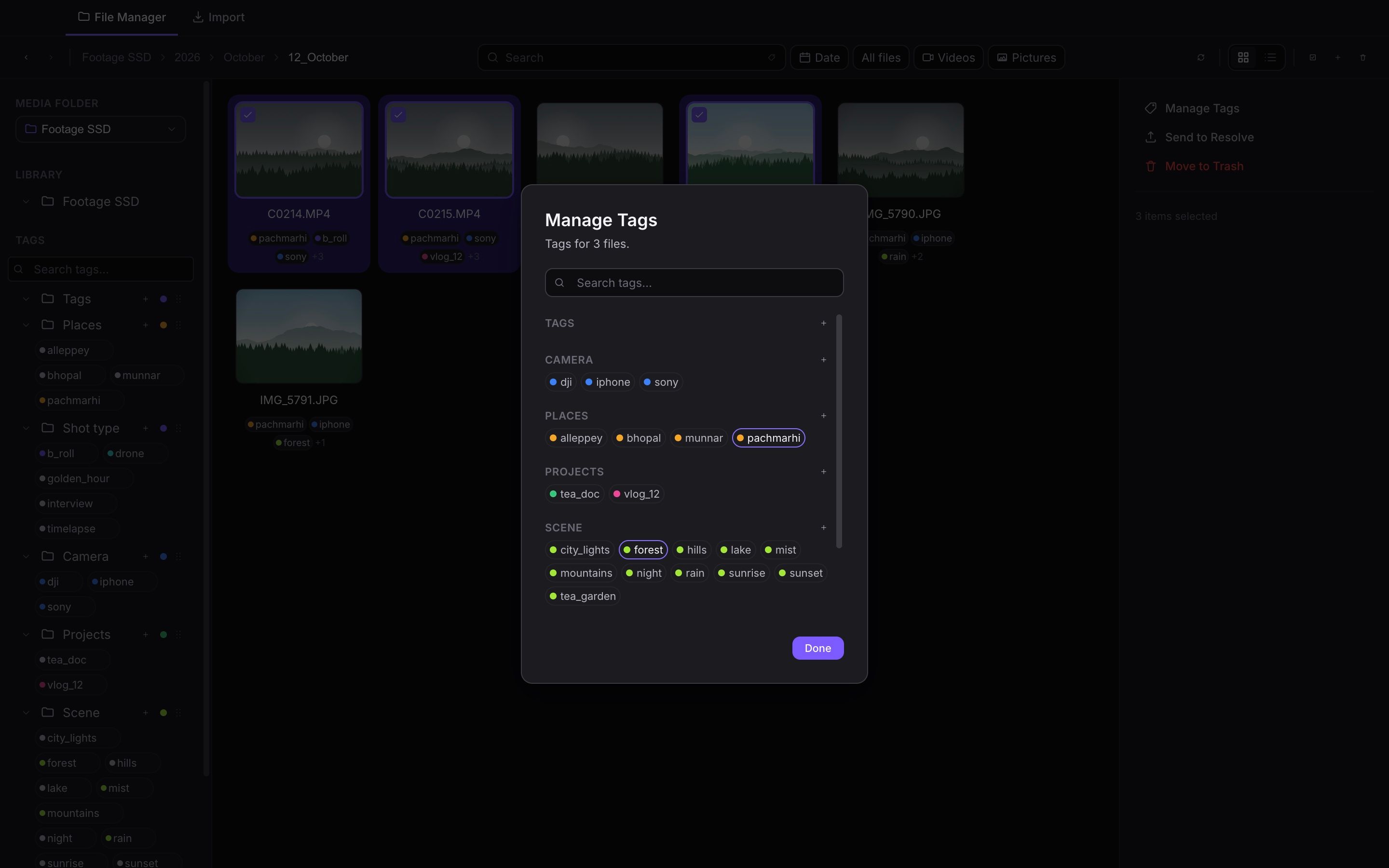
Organize tags into groups such as places, shot types, cameras and projects, give them colors, and apply them to many files at once. Click any tag to see every clip that has it.

  • Tag groups with their own colors
  • Tag a whole selection in one dialog
  • Real Finder tags, and you can load the ones you already use in Finder
The library filtered by the drone tag, showing six drone clips from different days and places.
Every drone shot in the library, from one click on a tag
The Manage Tags dialog open for three selected files, with tags grouped under Camera, Places, Projects and Shot type.
Tag three clips at once from grouped, colored tags

05 Send to Resolve

From selects to your edit in one step

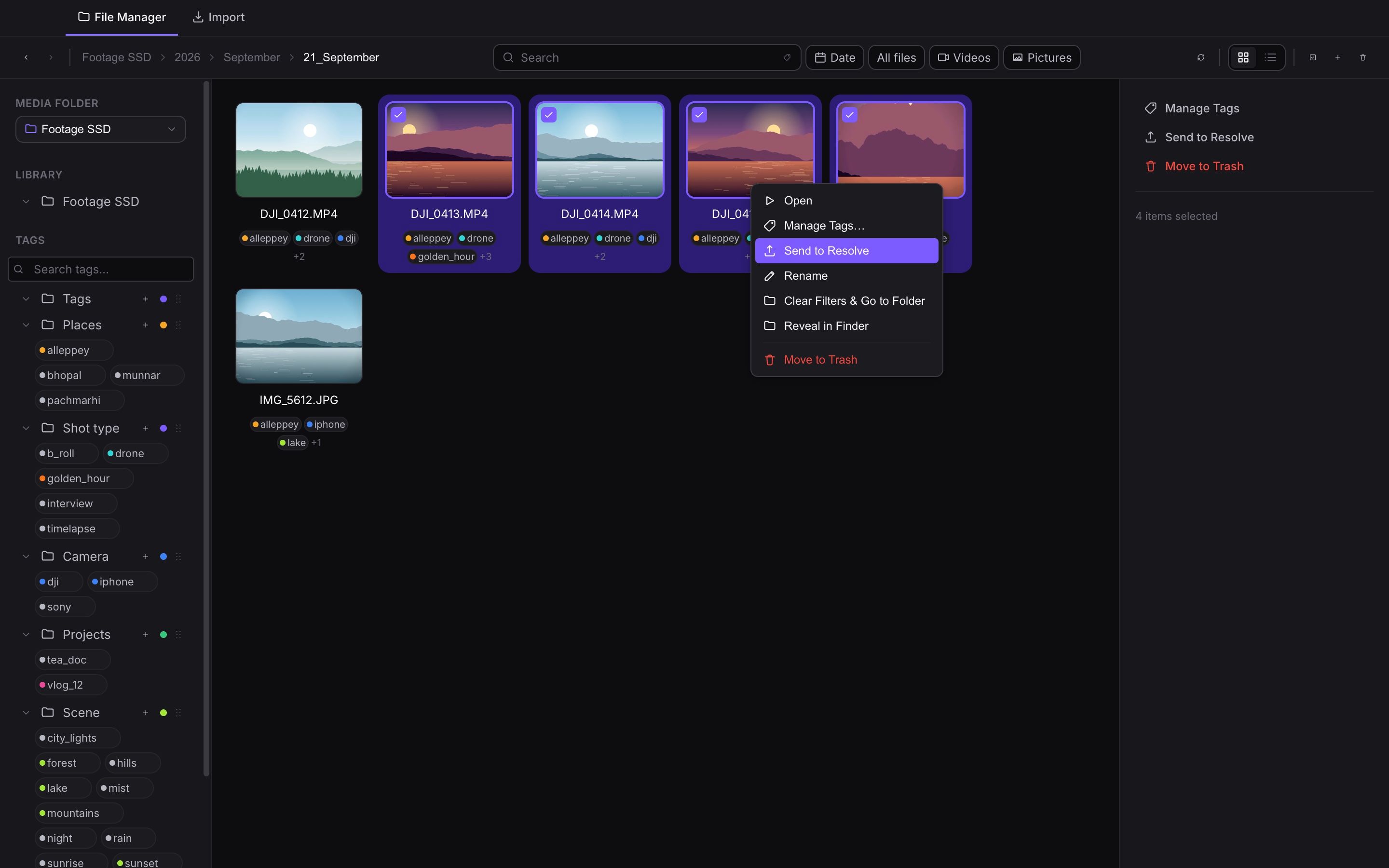
Select the clips you want, right-click, and send them into the project open in DaVinci Resolve. No dragging between windows, no hunting through folders in the Media Pool.

  • Works on any selection, even across a filtered view
  • Lands in the current project, ready to cut
  • Tells you exactly what was imported
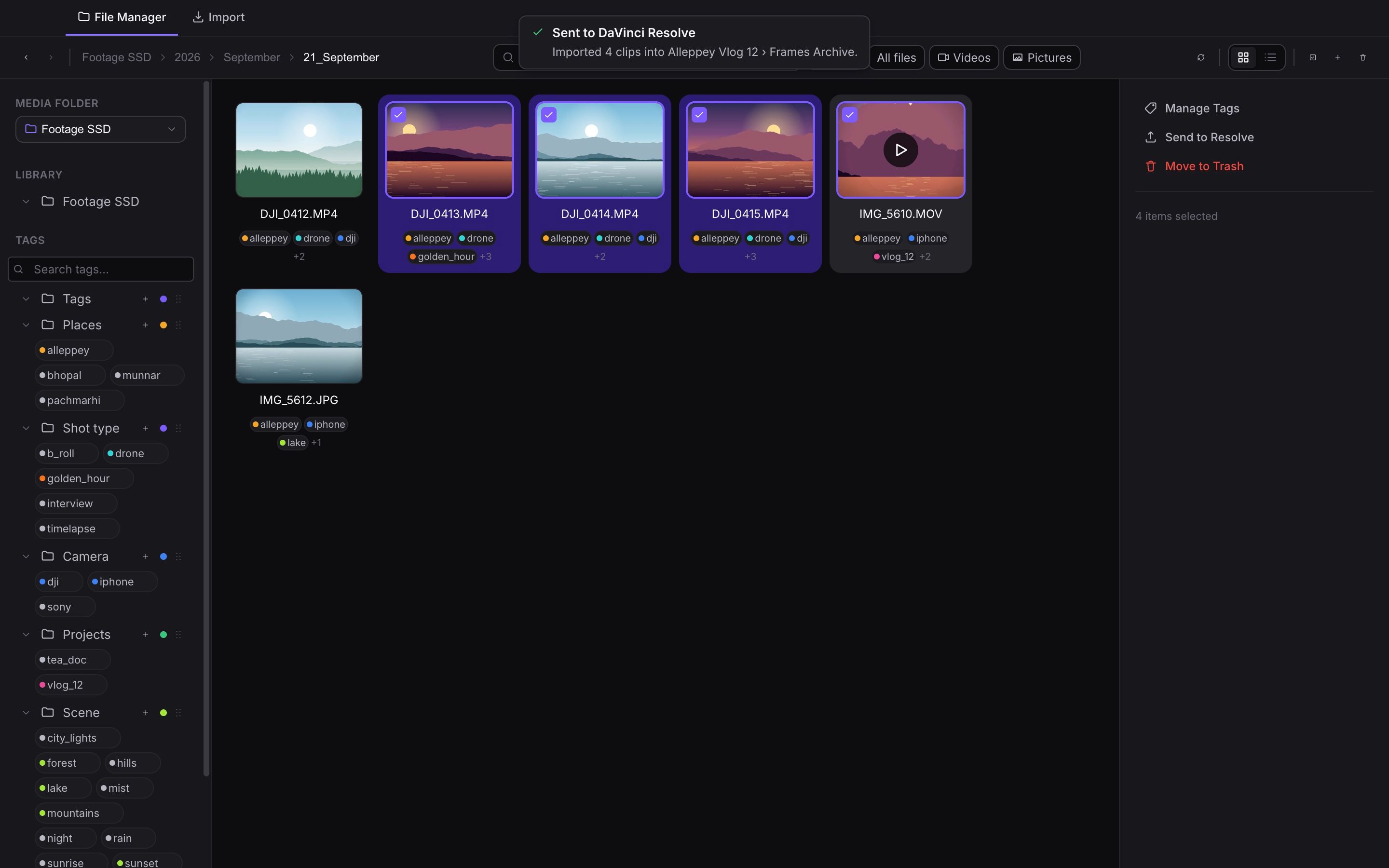
Four selected clips with the right-click menu open and Send to Resolve highlighted.
Right-click a selection and send it
A confirmation reading Sent to DaVinci Resolve: imported 4 clips into Alleppey Vlog 12, Frames Archive bin.
Four clips in the open Resolve project, confirmed

Pricing

Pay once. Keep every update.

One simple price, about the cost of a couple of coffees. Buy Frames Archive once and every future update is yours, including the AI agent MCP server.

Frames Archive

$9.99 one time

About the price of a couple of coffees

Buy Frames Archive

macOS 13 or later · Apple silicon and Intel

  • Every feature, from import and tagging to Send to Resolve
  • AI agent tagging through the built-in MCP server
  • All future updates, at no extra cost
  • No subscription and no account

Help shape what comes next.

Join the Frames Archive Discord server to request features, report issues, and see what's being worked on.

Join the Discord

Bring order to your footage.

Download Frames Archive and point it at the folders you already have.

Download for macOS

Version 0.1.0 · macOS 13 or later · Apple silicon and Intel